
States and rate updates
The States page lists the states that TaxRateCentral knows. It is also where you process the rates. Open it from the States action on the TaxRateCentral Setup Card.
The fields
| Field | What it shows |
|---|---|
| Code | The two-letter state code, for example WA |
| Description | The state name |
| Tax Collected | Turn on for each state where you collect sales tax. The app processes only these states |
| Last Processed | The date and time of the last rate processing for the state. You cannot edit it |
1 · Load the states
- Choose Load States.
- Choose Yes to confirm.
The app gets the state list from the service. It adds the states that do not exist yet. It does not change the existing states, and it does not turn on Tax Collected.
You can also enter the states manually.
2 · Mark the states you collect tax in
Turn on Tax Collected for each state where you collect sales tax.
3 · Process one state
- Select the state.
- Choose Process.
- Choose Yes to confirm.
The state must have Tax Collected on. The app gets the rates for the state from the service. It then creates or updates the tax areas, tax jurisdictions, and tax details. See Tax areas and jurisdictions. The app then fills in Last Processed.
4 · Process the marked states
- Optional: set a filter on the States page, for example on Code.
- Choose Process All.
- Choose Yes to confirm.
The app processes each state that has Tax Collected on and that is in the page filter. A dialog shows the progress. The app saves the result after each state. At the end, it shows the number of states that it processed.
Note. Processing a large number of states can take a long time. To process them outside of working hours, use the job queue.
Related actions
| Action | Opens |
|---|---|
| Post Codes | The Post Codes page, filtered to the selected state |
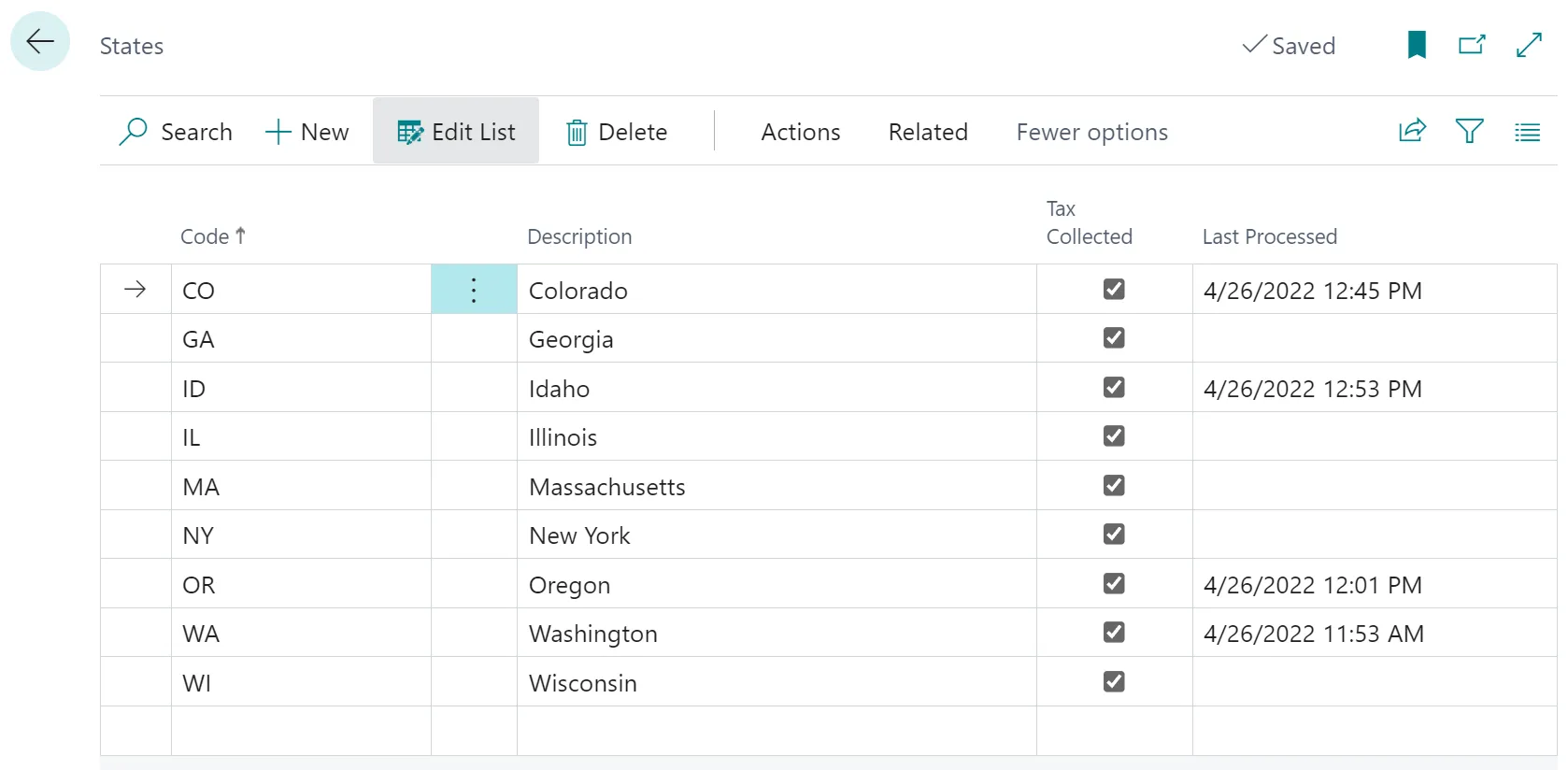 Figure: the States page after the first rate processing.