
Installation
TaxRateCentral is an extension for Microsoft Dynamics 365 Business Central, Microsoft’s ERP software. It manages United States sales tax data inside Business Central. It gets states, post codes, and rates from the TaxRateCentral web service. It then creates and updates the tax areas, tax jurisdictions, and tax details that Business Central uses to calculate sales tax. You install it from the AppSource Gallery.
Requirements
| Requirement | Value |
|---|---|
| Business Central | Version 28 or later (Runtime 16.0) |
| Deployment | Business Central Online (Production or Sandbox Environment) |
| Dependencies | A subscription to the TaxRateCentral web service, which supplies the states, post codes, and rates. See Service connection. No other apps are necessary beyond the Business Central base and system applications |
Install from AppSource
- In Business Central, choose search (Tell Me) and open Extension Management.
- Choose the AppSource Gallery action.
- Search for TaxRateCentral (publisher BCAppCo), then choose its name.
- Choose the Install App action.
- Follow the prompts to install the app into your environment.
Use a sandbox environment for evaluation. A sandbox also lets you load the demo data.
Allow the extension to call the service
Business Central must allow the extension to send HTTP requests to the TaxRateCentral web service.
- Open the Extension Management page.
- Select TaxRateCentral.
- Choose Configure.
- Turn on Allow HttpClient Requests.
Note. Do this step in each environment where you install the app. The app reads this setting before it calls the service. If the setting is off, the app shows the error HTTP Client Requests not enabled.
What the install creates
The install does not create setup records, states, post codes, or tax areas. You configure the app after the install.
The install adds a TaxRateCentral menu to the Business Manager role center. The menu contains the TaxRateCentral Setup action. This action opens the TaxRateCentral Setup Card. On other role centers, use Tell Me (Alt+Q) and search for TaxRateCentral Setup Card.
In a sandbox, the first time you open the TaxRateCentral Setup Card, the app offers to load the demo data.
After installing
- Assign the permission sets to your users.
- (Sandbox only) Decide if you want the demo data.
- Complete the TaxRateCentral Setup Card.
- Enter your API key on the service connection.
- Follow the implementation checklist.
Uninstalling
- Open Extension Management.
- Find TaxRateCentral in the list.
- Choose Uninstall from the Actions menu.
- Business Central asks what to do with the extension data. Choose to delete the data, or to keep it.
If you keep the data and install the app again, it uses your existing setup, states, post codes, and certificates without changes.
If you delete the data, the app removes its setup and its own records. This cannot be undone. A later install starts empty.
The tax areas, tax jurisdictions, and tax details are standard Business Central records. The uninstall does not remove them, so your sales documents keep their tax setup.
To remove the app from the environment completely, choose Unpublish on the Extension Management page after you uninstall it.
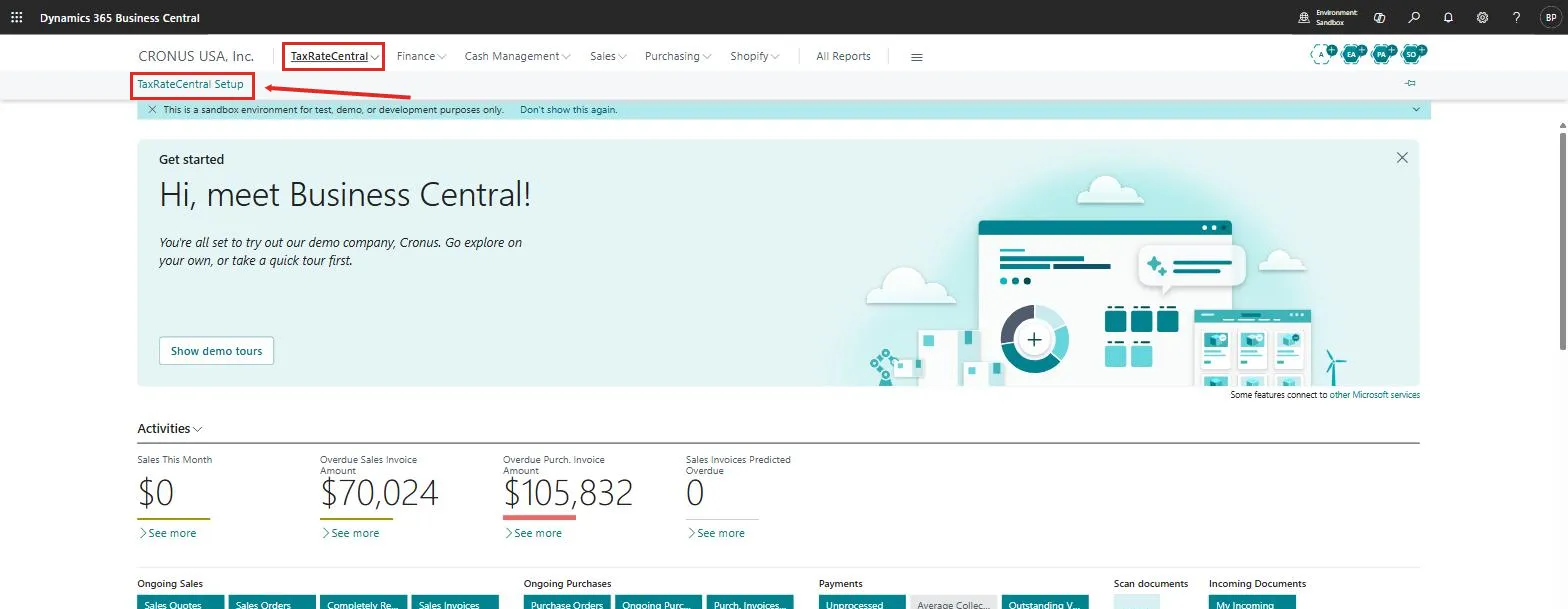 Figure: the TaxRateCentral menu on the Business Manager role center.