
Post codes
TaxRateCentral adds data and an action to the standard Business Central Post Codes page. In the US version of Business Central, the page caption is ZIP Codes. Open it from the Post Codes action on the TaxRateCentral Setup Card.
Fields that TaxRateCentral adds
| Field | What it shows |
|---|---|
| County | The county of the post code, for example Jefferson |
| Post Office | The post office of the post code |
Note. In the US version, the standard State column holds the state code. The TaxRateCentral County column holds the county name. In other versions of Business Central, the standard column can also have the caption County. Then the page shows two columns with the caption County. The TaxRateCentral column is the one at the end of the list.
Load the post codes
- Choose Load Zip Codes.
- Choose Yes to confirm.
The app gets the post codes from the service for each state that the service lists. This includes states that do not have Tax Collected on. The app adds each combination of code and city that does not exist yet. It does not change the existing post codes.
Enabled and EndPoint URL must be filled in on the setup card.
You can also enter the post codes manually.
Note. The loaded post codes help Business Central fill in the city and state when you enter a post code. The app then finds the tax area from the state, post code, and city. See Tax area assignment.
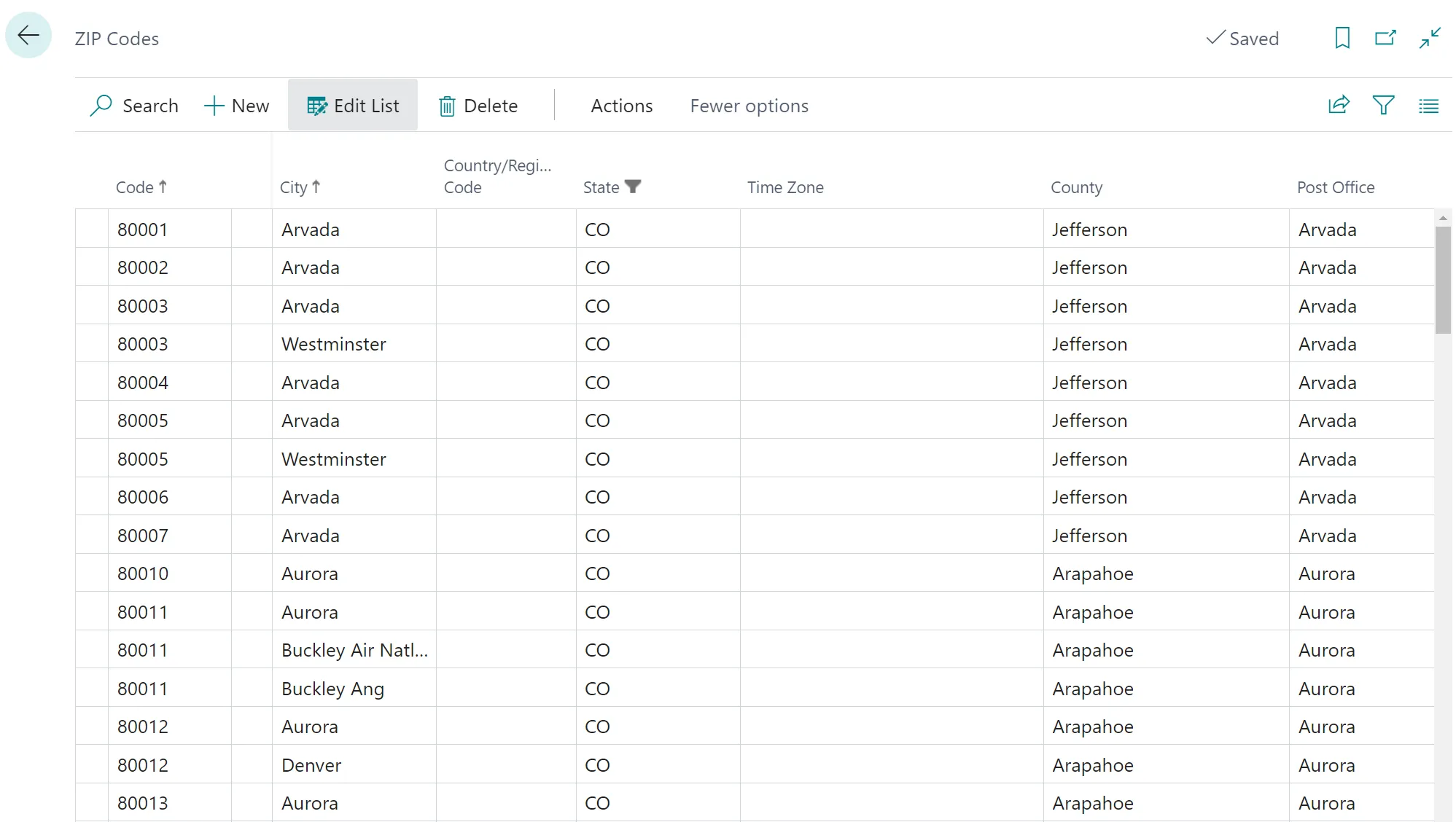 Figure: post codes with the county and post office data.