
Job queue
Tax rates change during the year. The TaxRateCentral job queue entry processes the rates again on a schedule, so that you do not have to do it manually.
Create the job queue entry
The demo data creates the entry. In other cases, create it yourself:
- Open the TaxRateCentral Setup Card.
- Choose Create JobQueue Entry.
- Choose Yes to confirm.
The action shows only when the entry does not exist.
The default schedule
| Field | Value |
|---|---|
| Object ID to Run | 14241904, TigTx Job Queue Processor |
| Recurring Job | On |
| Next Run Date Formula | 1M (one month) |
| Earliest Start Date/Time | Five days before the end of the current month |
| Status | On Hold |
Start the job queue entry
The app creates the entry with the status On Hold. The entry does not run until you start it.
- Open the Job Queue Entries page.
- Select the TigTx Job Queue Processor entry.
- Make sure that the schedule is correct for your company.
- Choose Set Status to Ready.
What the job does
When the job runs, it processes each state that has Tax Collected on. It does the same work as the Process All action. See States and rate updates.
To process only some states, enter a state filter in Parameter String. For example, enter
WA|OR to process Washington and Oregon.
The job does not run the update when Enabled is off on the setup card.
Note. With Prompt Update Tax Liable on, background processes do not do the tax exempt certificate check. See Tax exempt certificates.
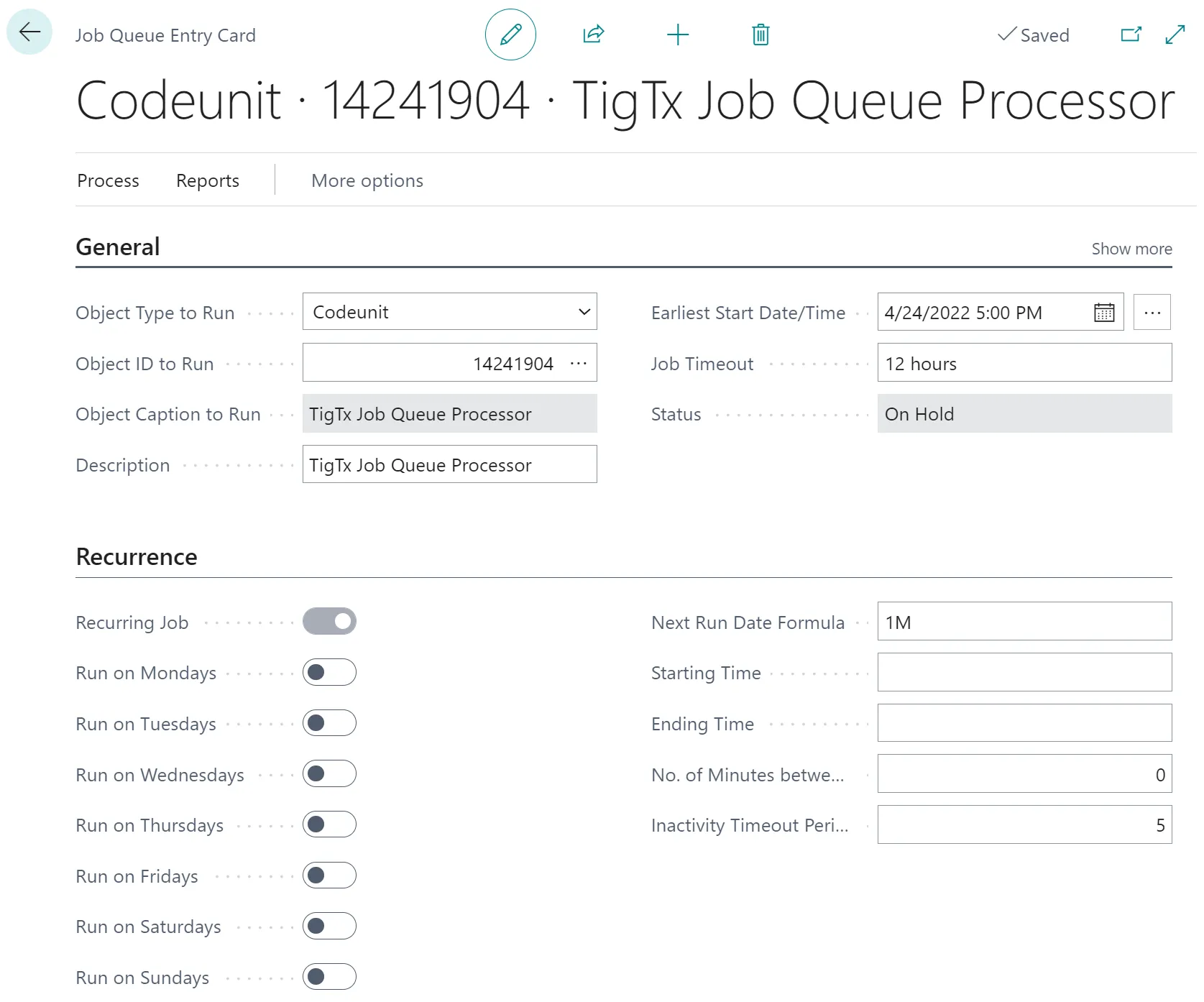 Figure: the TaxRateCentral job queue entry before you start it.